
The Best Guide to HotPlayer: Installation, Tips, and Troubleshooting
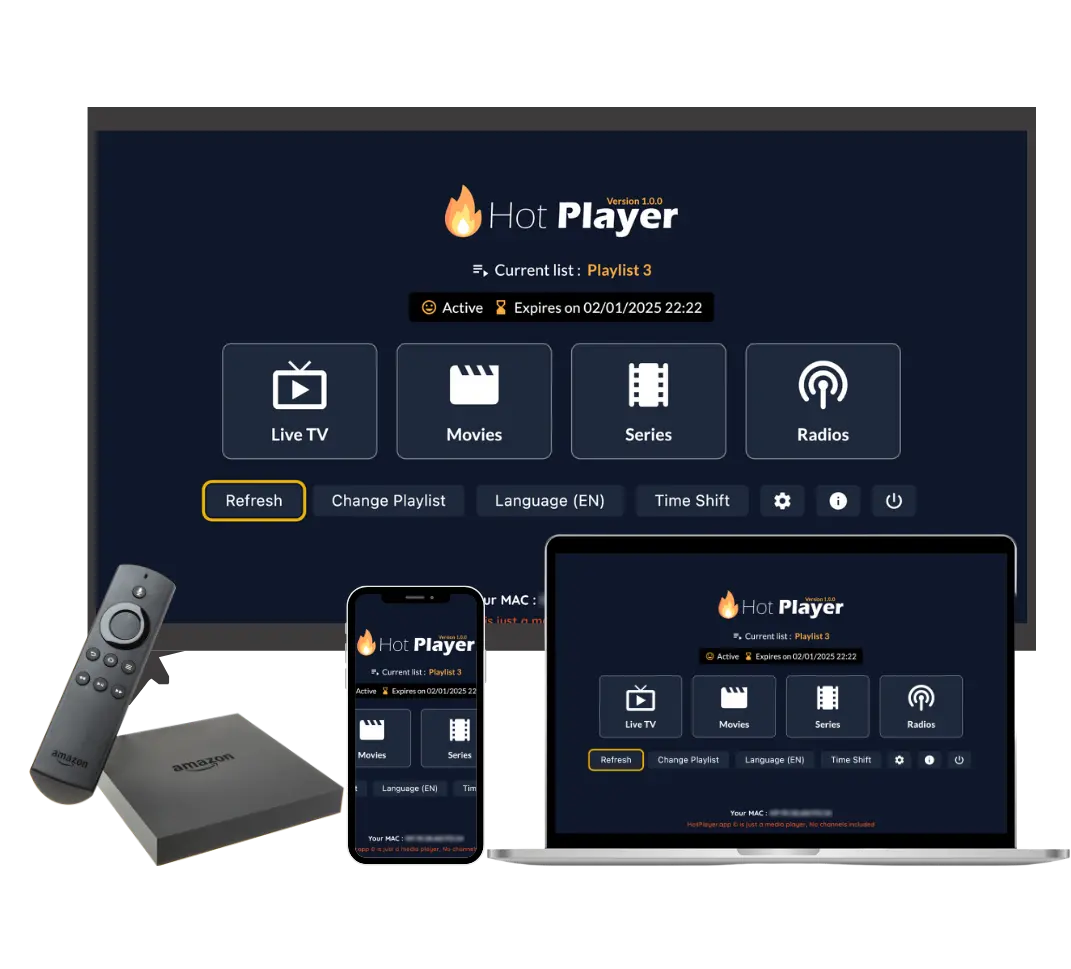
Installing HotPlayer and setting it up with an IPTV playlist is straightforward, but having a comprehensive guide can make the process even smoother. This guide covers everything you need to know about installing HotPlayer on all major devices, adding your IPTV playlist, useful tips, and troubleshooting common issues.
Remember: HotPlayer is a free IPTV player app that you download to your device. The app itself doesn't include any content - it's just a player. To watch channels and content, you need to subscribe to our IPTV playlist service and add the playlist to HotPlayer.
Before You Begin: What You Need
Before installing HotPlayer, make sure you have:
- A compatible device (Firestick, Android, iOS, Smart TV, Windows, etc.)
- Stable internet connection (minimum 10 Mbps for HD, 25 Mbps for 4K)
- An IPTV subscription - Subscribe to our IPTV playlist service to get credentials
- Basic technical knowledge - Ability to follow step-by-step instructions
- For Firestick: Downloader app installed (available from Amazon Appstore)
Once you have these ready, you can proceed with the installation. The process typically takes 10-15 minutes depending on your device.
Installing HotPlayer on Firestick/Fire TV
Firestick is one of the most popular devices for IPTV streaming. Here's how to install HotPlayer on your Amazon Fire TV or Firestick:
Step-by-Step Installation:
- Enable Apps from Unknown Sources:
- Go to Settings on your Fire TV
- Select "My Fire TV" or "Device"
- Choose "Developer Options"
- Turn ON "Apps from Unknown Sources"
- Confirm when prompted
- Install Downloader App:
- Go to Amazon Appstore on your Fire TV
- Search for "Downloader"
- Install the Downloader app (it's free)
- Download HotPlayer APK:
- Open the Downloader app
- Enter the URL: https://apk.hotplayer.app
- Or use Downloader Code: 395800
- Wait for the APK to download
- Install HotPlayer:
- Click "Install" when prompted
- Wait for installation to complete
- Click "Open" or find HotPlayer in your apps
- Add Your IPTV Playlist:
- Open HotPlayer app
- Go to Settings or Playlist section
- Add your IPTV playlist URL or credentials (provided after subscription)
Tip: If you don't have the Downloader app, you can also sideload HotPlayer using ADB or download the APK on your computer and transfer it via USB.
Installing HotPlayer on Android
Installing HotPlayer on Android devices is straightforward. You have two options:
Method 1: Google Play Store (Recommended)
- Open Google Play Store on your Android device
- Search for "HotPlayer"
- Tap on the official HotPlayer app
- Click "Install"
- Wait for installation to complete
- Open HotPlayer from your app drawer
Method 2: Direct APK Download
- Enable "Install from Unknown Sources" in Android Settings
- Visit https://apk.hotplayer.app on your device
- Download the APK file
- Open the downloaded APK file
- Tap "Install" when prompted
- Open HotPlayer after installation
Note: The Google Play Store method is safer and easier, as it automatically handles updates. The APK method is useful if the app isn't available in your region's Play Store.
Installing HotPlayer on iOS (iPhone/iPad)
Installing HotPlayer on iOS devices is simple through the App Store:
- Open the App Store on your iPhone or iPad
- Search for "HotPlayer"
- Find the official HotPlayer app
- Tap "Get" or the download button
- Authenticate with Face ID, Touch ID, or your Apple ID password
- Wait for the app to download and install
- Open HotPlayer from your home screen
Note: iOS installation is the simplest method. The app is free and available directly from the App Store, so no special settings or workarounds are needed.
Installing HotPlayer on Smart TVs
Smart TV installation varies by brand. Here's how to install HotPlayer on different Smart TV platforms:
Samsung Smart TV
- Press the Smart Hub button on your remote
- Navigate to "Apps"
- Search for "HotPlayer"
- Select and install HotPlayer
- Open the app from your Smart Hub
Alternative: Visit Samsung TV Apps on your computer and send the app to your TV.
LG Smart TV (WebOS)
- Press the Home button on your remote
- Go to "LG Content Store"
- Search for "HotPlayer"
- Click "Install"
- Wait for installation to complete
- Open HotPlayer from your apps
Direct Link: LG App Store - HotPlayer
Roku
- Press the Home button on your Roku remote
- Navigate to "Streaming Channels"
- Search for "HotPlayer" or "Hot Player"
- Select "Add Channel"
- Wait for the channel to install
- Open HotPlayer from your channel list
Direct Link: Roku Channel Store - HotPlayer
Installing HotPlayer on Windows
Installing HotPlayer on Windows PC is easy through the Microsoft Store:
- Open Microsoft Store on your Windows PC
- Search for "HotPlayer"
- Click on the HotPlayer app
- Click "Get" or "Install"
- Wait for the download and installation to complete
- Launch HotPlayer from the Start menu or Microsoft Store
Alternative: You can also download the Windows installer directly from Microsoft Store or visit our download page for direct links.
Adding Your IPTV Playlist to HotPlayer
Once HotPlayer is installed, you need to add your IPTV playlist to start watching content. Remember: HotPlayer app is free but empty - you need to subscribe to our IPTV service to get a playlist with channels and content.
How to Add IPTV Playlist:
- Subscribe to Our IPTV Service:
- Visit our packages page and choose a subscription plan
- Complete the checkout process
- You'll receive an email with your IPTV playlist credentials
- Open HotPlayer App:
- Launch the HotPlayer app on your device
- Navigate to Settings or Playlist section
- Add Playlist:
- Enter your playlist URL (provided in the email)
- Or upload your M3U file if provided
- Enter your username and password (if required)
- Save the settings
- Wait for Sync:
- HotPlayer will download the channel list
- This may take a few minutes depending on playlist size
- Once complete, you'll see all available channels
Important: Without subscribing to our IPTV service (or another IPTV provider), HotPlayer will remain empty with no channels or content. The app is just a player - the subscription provides the actual content.
HotPlayer Tips and Tricks
Here are some useful tips to get the most out of HotPlayer:
1. Organize Your Channels
Use the Favorites feature to save your most-watched channels. This makes it much faster to access your preferred content without scrolling through thousands of channels.
2. Use Categories
HotPlayer organizes content by categories (Sports, Movies, News, etc.). Use these categories to quickly find the type of content you want to watch.
3. Enable EPG (Electronic Program Guide)
The EPG shows what's currently playing and what's coming up. Make sure EPG is enabled in settings to see program information for each channel.
4. Adjust Quality Settings
If you experience buffering, go to settings and adjust the streaming quality. Lower quality (SD or HD) works better on slower internet connections.
5. Use Search Function
With 25,000+ channels, use the search function to quickly find specific channels or content instead of browsing manually.
6. Set Up Parental Controls
If you have children, use HotPlayer's parental control features to restrict access to certain content categories and set viewing time limits.
7. Keep the App Updated
Regularly update HotPlayer app to get the latest features, bug fixes, and performance improvements. Updates are usually automatic on app stores.
8. Use Multiple Devices
Depending on your subscription plan, you can use the same IPTV playlist on multiple devices. Install HotPlayer on all your devices and add the same playlist credentials.
Troubleshooting Common Issues
Here are solutions to common problems you might encounter with HotPlayer:
Issue: Channels Not Loading or "No Content"
Possible Causes & Solutions:
- No IPTV Playlist Added: Make sure you've subscribed to our IPTV service and added the playlist to HotPlayer. The app is empty without a playlist.
- Incorrect Credentials: Double-check your username, password, and playlist URL from the subscription email
- Playlist Not Synced: Go to Settings and manually refresh/sync the playlist
- Internet Connection: Check your internet connection - you need stable internet to load channels
Issue: Buffering or Constant Loading
Solutions:
- Check Internet Speed: Ensure you have at least 10 Mbps for HD, 25 Mbps for 4K. Test your speed at speedtest.net
- Reduce Quality: Lower the streaming quality in HotPlayer settings (SD instead of HD/4K)
- Restart Router: Sometimes a simple router restart improves connection stability
- Use Wired Connection: If possible, connect your device via Ethernet instead of WiFi for more stable connection
- Close Other Apps: Close other apps using internet bandwidth
Issue: App Crashes or Freezes
Solutions:
- Update the App: Make sure you're using the latest version of HotPlayer
- Clear App Cache: Go to device settings, find HotPlayer, and clear cache/data
- Restart Device: Sometimes a simple device restart fixes app issues
- Reinstall App: Uninstall and reinstall HotPlayer if problems persist
- Check Device Storage: Ensure your device has enough free storage space
Issue: Can't Install on Firestick
Solutions:
- Enable Unknown Sources: Make sure "Apps from Unknown Sources" is enabled in Fire TV Developer Options
- Install Downloader App: You need the Downloader app to download the APK
- Check URL: Verify you're using the correct URL: https://apk.hotplayer.app
- Use Downloader Code: Try using code 395800 in the Downloader app
- Check Storage: Ensure your Firestick has enough storage space
Issue: EPG (Program Guide) Not Showing
Solutions:
- Enable EPG: Check that EPG is enabled in HotPlayer settings
- Wait for Sync: EPG information may take a few minutes to load after adding playlist
- Refresh EPG: Manually refresh EPG data in settings
- Check Playlist: Some channels may not have EPG data available
Issue: Audio/Video Out of Sync
Solutions:
- Change Channel: Switch to another channel and back
- Restart Stream: Stop and restart the current stream
- Check Internet: Poor connection can cause sync issues
- Update App: Make sure you're using the latest HotPlayer version
Still Having Issues?
If you've tried the solutions above and still have problems:
Conclusion
Installing HotPlayer and setting it up with an IPTV playlist is a straightforward process that typically takes 10-15 minutes. The key points to remember are:
- HotPlayer app is free to download from app stores
- The app is just a player - it doesn't include any content
- You need to subscribe to our IPTV playlist service to get channels and content
- Installation varies by device but is generally simple
- Most issues can be resolved with the troubleshooting tips above
Once installed and configured with your IPTV playlist, HotPlayer provides an excellent streaming experience with access to 25,000+ channels and 100,000+ VOD titles. If you encounter any issues during installation or setup, don't hesitate to contact our 24/7 support team for assistance.
Ready to Install HotPlayer?
Download the free HotPlayer app and subscribe to our IPTV service to start streaming 25,000+ channels and 100,000+ VOD titles today!