
How to Upload Playlist on HotPlayer App: Complete Guide
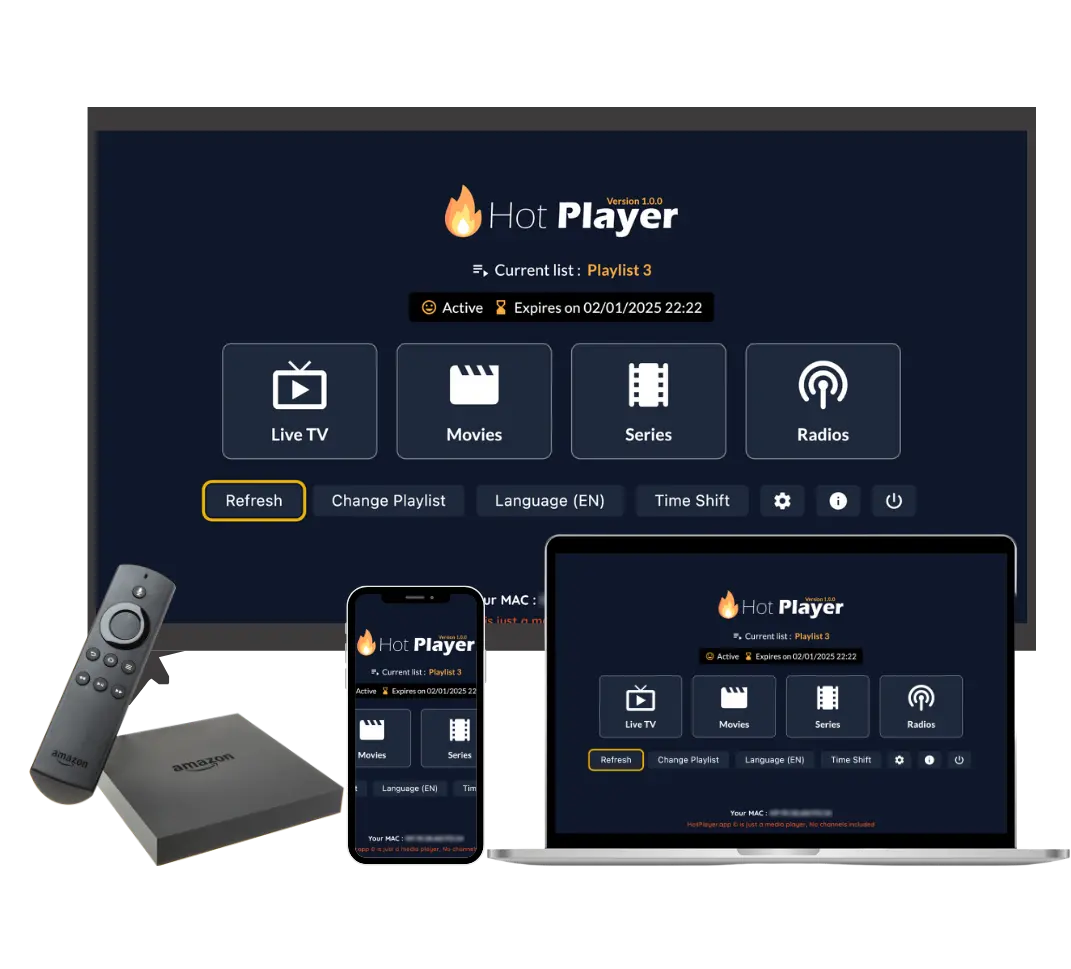
Once you've installed the HotPlayer app on your device, the next crucial step is to upload your IPTV playlist. Without a playlist, HotPlayer is just an empty player app with no channels or content. This guide will walk you through everything you need to know about uploading playlists to HotPlayer.
Important to Remember: HotPlayer is a free IPTV player application. The app itself doesn't include any content. To watch channels and movies, you need to subscribe to an IPTV service (like ours) that provides a playlist with credentials. Once you have the playlist, you add it to HotPlayer to access all the content.
What is an IPTV Playlist?
An IPTV playlist is a file or URL that contains information about all the channels, movies, and TV shows available in your IPTV subscription. Think of it as a directory or catalog that tells HotPlayer where to find and how to access each piece of content.
Types of IPTV Playlists:
- M3U Playlist URL: A web link (URL) that points to your playlist. HotPlayer downloads the playlist from this URL whenever you open the app.
- M3U File: A downloadable file (usually .m3u or .m3u8 format) that contains all playlist information. You can upload this file directly to HotPlayer.
- Xtream Codes API: A more advanced method using server URL, username, and password. This method provides better integration and features.
Most IPTV providers (including us) offer all three methods, so you can choose the one that works best for your device and preferences.
Getting Your IPTV Playlist
Before you can upload a playlist to HotPlayer, you need to have one. Here's how to get your IPTV playlist:
Step 1: Subscribe to IPTV Service
- Visit our packages page and choose a subscription plan that fits your needs
- Complete the checkout process
- You'll receive a confirmation email with your subscription details
Step 2: Receive Your Playlist Credentials
After subscribing, you'll receive an email containing:
- Playlist URL (M3U URL): A link like
https://your-provider.com/get.php?username=xxx&password=xxx&type=m3u - Username: Your unique username for accessing the service
- Password: Your secure password
- Server URL: For Xtream Codes API method (if supported)
- M3U File Download Link: Direct download link for the playlist file (if provided)
Important: Keep your playlist credentials secure and don't share them with others. Your subscription is tied to your account, and sharing credentials may result in service suspension.
Don't Have a Playlist Yet?
To get the most out of HotPlayer, you need a high-quality IPTV playlist with stable streams and a huge content library. We built our own IPTV service specifically for HotPlayer users so you don't have to waste time searching for reliable providers.
Methods to Upload Playlist to HotPlayer
HotPlayer supports three main methods for adding playlists. Each method has its advantages:
M3U URL
Easiest method. Just paste the URL.
M3U File
Upload file directly from device.
Xtream Codes
Advanced method with better features.
Method 1: Using Playlist URL (M3U URL)
This is the easiest and most common method. You simply paste your playlist URL into HotPlayer, and it automatically downloads and loads all channels.
Step-by-Step Instructions:
- Open HotPlayer App:
- Launch the HotPlayer app on your device
- Wait for the app to fully load
- Navigate to Settings/Playlist:
- Look for "Settings" or "Playlist" option in the main menu
- Tap on "Add Playlist" or "Playlist Settings"
- Some versions may have a "+" or "Add" button
- Select "Add URL" or "M3U URL":
- Choose the option to add playlist via URL
- You'll see a text field to enter the URL
- Paste Your Playlist URL:
- Copy the M3U URL from your subscription email
- Paste it into the URL field in HotPlayer
- Make sure the entire URL is copied correctly (it's usually quite long)
- Save and Load:
- Tap "Save" or "Load" button
- HotPlayer will start downloading the playlist
- This may take 1-3 minutes depending on playlist size
- Wait for the "Playlist loaded successfully" message
Tip: The M3U URL method is preferred because HotPlayer automatically updates the playlist whenever you open the app. This ensures you always have the latest channels and content.
Method 2: Uploading M3U File
If your provider gives you a downloadable M3U file, you can upload it directly to HotPlayer. This method is useful when you want to use the playlist offline or don't have constant internet access.
Step-by-Step Instructions:
- Download the M3U File:
- Check your subscription email for M3U file download link
- Download the file to your device (usually saved in Downloads folder)
- The file will have a .m3u or .m3u8 extension
- Open HotPlayer App:
- Launch HotPlayer on your device
- Go to Settings or Playlist section
- Select "Import File" or "Upload M3U":
- Choose the option to import/upload a file
- HotPlayer will ask for file access permission (grant it)
- Browse and Select File:
- Navigate to where you saved the M3U file (usually Downloads)
- Select the .m3u or .m3u8 file
- Confirm the selection
- Wait for Import:
- HotPlayer will read and import the file
- This process takes 1-2 minutes
- You'll see a confirmation when import is complete
Note: M3U files are static - they don't update automatically. If your provider adds new channels, you'll need to download and re-upload the updated file. The URL method is better for automatic updates.
Method 3: Using Xtream Codes API
Xtream Codes API is a more advanced method that provides better integration, faster loading, and additional features like EPG (Electronic Program Guide) support.
Step-by-Step Instructions:
- Get Your Xtream Codes Credentials:
- Check your subscription email for Xtream Codes information
- You'll need: Server URL, Username, and Password
- These are different from M3U URL credentials
- Open HotPlayer Settings:
- Launch HotPlayer app
- Navigate to Settings
- Look for "Xtream Codes" or "API" option
- Enter Xtream Codes Information:
- Server URL: Enter the server address (e.g., https://your-server.com)
- Username: Enter your Xtream Codes username
- Password: Enter your Xtream Codes password
- Test Connection:
- Tap "Test" or "Connect" button
- HotPlayer will verify the credentials
- Wait for "Connection successful" message
- Save and Load:
- Save the settings
- HotPlayer will load channels and content
- This method is usually faster than M3U URL
Advantage: Xtream Codes API provides better performance, faster channel loading, and automatic EPG updates. If your provider supports it, this is the recommended method.
Device-Specific Instructions
While the general process is similar across devices, here are some device-specific tips:
Firestick/Fire TV
- Use the remote to navigate - the URL field can be tricky to type
- Consider using the Downloader app to copy the URL from a text file
- For file upload, you may need to use a file manager app first
- Xtream Codes method works best on Firestick
Android/Android TV
- Easiest device for all three methods
- You can copy URL from email app and paste directly
- File upload works seamlessly with Android's file system
- All methods are fully supported
iOS (iPhone/iPad)
- Copy URL from email and paste into HotPlayer
- For file upload, use Files app to locate the M3U file
- Grant HotPlayer access to Files when prompted
- Xtream Codes method is fully supported
Smart TVs (Samsung, LG, Roku)
- URL method is recommended (easiest with TV remote)
- File upload may not be available on all Smart TV versions
- Use the on-screen keyboard carefully when entering URL
- Consider using a mobile app to send URL to TV if supported
Windows PC
- All three methods work perfectly
- Easiest to copy/paste URL from email
- File upload is straightforward - just browse and select
- Best experience for managing multiple playlists
Verifying Your Playlist
After uploading your playlist, it's important to verify that it loaded correctly:
How to Verify:
- Check Channel Count:
- Go to the Channels section in HotPlayer
- You should see a list of channels (usually thousands)
- The exact number depends on your subscription plan
- Test a Channel:
- Select any channel and try to play it
- It should start streaming within a few seconds
- If it buffers or doesn't load, see troubleshooting section
- Check Categories:
- Navigate through different categories (Sports, Movies, News, etc.)
- Each category should have multiple channels
- This confirms the playlist is properly organized
- Verify VOD Content:
- Go to Movies or Series section
- You should see a library of on-demand content
- Try playing a movie or episode to verify it works
Managing Multiple Playlists
HotPlayer allows you to add and manage multiple playlists. This is useful if you have subscriptions from different providers or want to organize content differently.
How to Add Multiple Playlists:
- Go to Playlist Settings in HotPlayer
- Tap "Add New Playlist" or "+" button
- Enter the new playlist URL, file, or Xtream Codes credentials
- Give it a name (e.g., "Sports Package", "International Channels")
- Save and wait for it to load
- You can switch between playlists from the settings menu
Tip: You can organize playlists by content type or provider. For example, one playlist for sports, another for movies, making it easier to find what you want to watch.
Troubleshooting Playlist Issues
If you encounter problems while uploading or using your playlist, try these solutions:
Issue: Playlist Won't Load
Solutions:
- Check Internet Connection: Ensure you have stable internet. Playlist loading requires active connection.
- Verify URL: Make sure the entire URL is copied correctly. URLs are case-sensitive and must be complete.
- Check Credentials: Verify your username and password are correct (if using Xtream Codes)
- Try Different Method: If URL doesn't work, try uploading the M3U file instead
- Clear Cache: Go to HotPlayer settings and clear app cache, then try again
Issue: "Invalid Playlist" or "Playlist Error"
Solutions:
- URL Format: Ensure the URL starts with http:// or https://
- File Format: If uploading file, make sure it's a valid .m3u or .m3u8 file
- Subscription Status: Verify your subscription is active and not expired
- Contact Provider: The playlist credentials might be incorrect - contact support
- Update App: Make sure you're using the latest version of HotPlayer
Issue: Channels Load But Won't Play
Solutions:
- Check Internet Speed: You need at least 10 Mbps for HD streaming
- Try Different Channel: Some channels may be temporarily unavailable
- Reduce Quality: Lower streaming quality in HotPlayer settings
- Restart App: Close and reopen HotPlayer
- Refresh Playlist: Go to settings and refresh/reload the playlist
Issue: Playlist Shows "0 Channels"
Solutions:
- Wait Longer: Large playlists take time to load. Wait 2-3 minutes
- Check Subscription: Verify your subscription is active and includes channels
- Re-upload Playlist: Delete the current playlist and add it again
- Try Different Method: Switch from URL to file or Xtream Codes
- Contact Support: There might be an issue with your subscription
Tips for Best Playlist Experience
Here are some tips to ensure the best experience with your IPTV playlist in HotPlayer:
1. Use M3U URL Method
The URL method ensures your playlist stays updated automatically. Whenever your provider adds new channels, they'll appear in HotPlayer without re-uploading.
2. Keep Credentials Secure
Never share your playlist URL or credentials. Each subscription is for personal use, and sharing may result in service suspension.
3. Organize with Favorites
With thousands of channels, use HotPlayer's Favorites feature to save your most-watched channels for quick access.
4. Enable EPG
Enable Electronic Program Guide (EPG) in settings to see what's currently playing and what's coming up on each channel.
5. Regular Updates
Keep HotPlayer app updated to the latest version for best compatibility and new features.
6. Stable Internet
Ensure you have a stable internet connection (minimum 10 Mbps) for smooth streaming without buffering.
7. Backup Your Playlist
Save your playlist URL or file in a secure location. This makes it easy to re-add if you switch devices or reinstall the app.
Conclusion
Uploading a playlist to HotPlayer is a straightforward process that takes just a few minutes. The key steps are:
- Subscribe to an IPTV service to get playlist credentials
- Choose your preferred method (URL, File, or Xtream Codes)
- Add the playlist to HotPlayer through Settings
- Verify the playlist loaded correctly by checking channels
- Start streaming your favorite content
Remember: HotPlayer is a free player app, but it needs an IPTV playlist (from a subscription service) to access content. Once you have both the app and a playlist, you'll have access to thousands of channels and on-demand content. If you encounter any issues, our 24/7 support team is always ready to help.
Ready to Add Your Playlist?
Subscribe to our IPTV service to get your playlist credentials and start streaming 25,000+ channels and 100,000+ VOD titles on HotPlayer today!