
How to Install and Setup HotPlayer on Every Device: Complete Guide
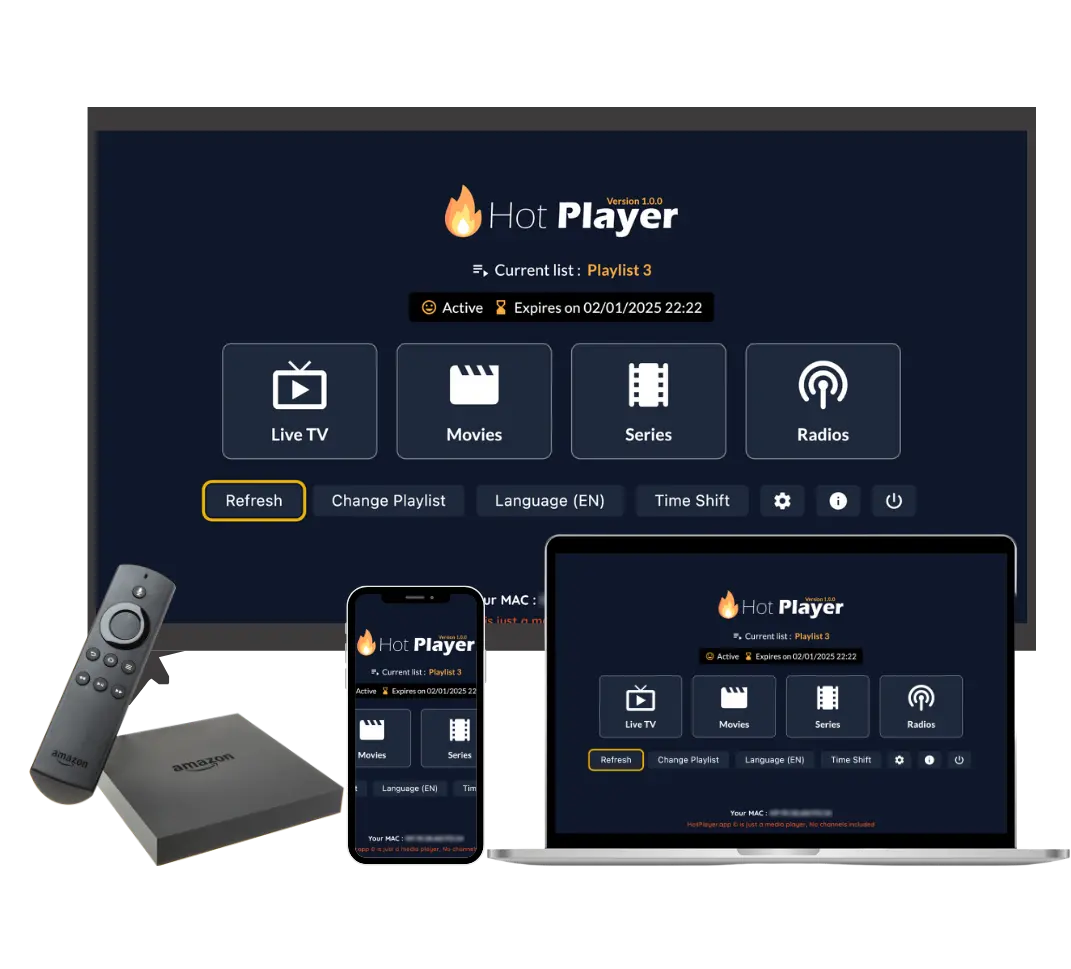
HotPlayer IPTV works seamlessly on all major devices and platforms. Whether you have a Firestick, Android phone, iPhone, Smart TV, Windows PC, or any other device, this comprehensive guide will walk you through installing and setting up HotPlayer on your specific device.
This guide covers installation instructions for every device that supports HotPlayer, including step-by-step processes, device-specific tips, and troubleshooting solutions. No matter what device you're using, you'll find the information you need here.
What is HotPlayer?
Before we dive into installation, it's important to understand what HotPlayer is:
HotPlayer is a free IPTV player application that you download and install on your devices. The app itself is just a media player - it doesn't include any channels, movies, or content by default.
To watch content, you need to subscribe to our IPTV service, which provides a playlist with 25,000+ live channels and 100,000+ VOD titles. When you add this playlist to HotPlayer, you can access all the content through the app.
Think of HotPlayer like VLC or any media player - it's the tool you use to play content, but you need to provide the content (via IPTV subscription) separately.
Before You Begin
Before installing HotPlayer on any device, make sure you have:
- Compatible Device: A device that supports HotPlayer (see device-specific sections below)
- Internet Connection: Stable Wi-Fi or data connection (minimum 10 Mbps for HD, 25 Mbps for 4K)
- Storage Space: At least 100 MB of free storage (app size is approximately 50-80 MB)
- IPTV Subscription: An active subscription to our IPTV service (after installation, to get playlist credentials)
- Basic Technical Knowledge: Ability to follow step-by-step instructions
Good News: Installation typically takes 5-15 minutes depending on your device. Most devices have straightforward installation processes, and we'll guide you through each step.
Installing on Firestick / Fire TV
Firestick is one of the most popular devices for IPTV streaming. Here's how to install HotPlayer:
Step-by-Step Installation:
- Enable Apps from Unknown Sources:
- Go to Settings → My Fire TV → Developer Options
- Turn ON "Apps from Unknown Sources"
- If Developer Options isn't visible, go to About and click "Fire TV Stick" 7 times
- Install Downloader App:
- Open Amazon Appstore
- Search for "Downloader" and install it
- Download HotPlayer APK:
- Open Downloader app
- Enter code: 395800 or URL: https://apk.hotplayer.app
- Wait for download to complete
- Install HotPlayer:
- Click "Install" when prompted
- Wait for installation to complete
- Open HotPlayer from your apps list
Works On: All Firestick models (Firestick 4K, Fire TV Cube, Fire TV Stick Lite) and Fire TV devices.
Installing on Android
Installing HotPlayer on Android devices is straightforward. You have two options:
Method 1: Google Play Store (Recommended)
- Open Google Play Store on your Android device
- Search for "HotPlayer"
- Tap on the official HotPlayer app
- Click "Install"
- Wait for installation to complete
- Open HotPlayer from your app drawer
Direct Link: Google Play Store - HotPlayer
Method 2: Direct APK Download
- Enable "Install from Unknown Sources" in Android Settings
- Visit https://apk.hotplayer.app on your device
- Download the APK file
- Open the downloaded APK file
- Tap "Install" when prompted
- Open HotPlayer after installation
Works On: All Android phones, tablets, and Android TV devices. The Google Play Store method is recommended for automatic updates.
Installing on iOS (iPhone/iPad)
Installing HotPlayer on iOS devices is the simplest method - it's available directly from the App Store:
Step-by-Step Installation:
- Open the App Store on your iPhone or iPad
- Search for "HotPlayer"
- Find the official HotPlayer app
- Tap "Get" or the download button
- Authenticate with Face ID, Touch ID, or your Apple ID password
- Wait for the app to download and install
- Open HotPlayer from your home screen
Direct Link: App Store - HotPlayer
Works On: All iPhone and iPad models running iOS 12.0 or later. No special settings or workarounds needed - just download from App Store!
Installing on Samsung Smart TV
Samsung Smart TVs run on Tizen OS. Here's how to install HotPlayer:
Step-by-Step Installation:
- Press the "Smart Hub" button on your Samsung TV remote
- Navigate to "Apps" section
- Search for "HotPlayer"
- Select and install HotPlayer
- Open the app from your Smart Hub
Alternative: Visit Samsung TV Apps on your computer and send the app to your TV.
Works On: All Samsung Smart TVs with Tizen OS. Make sure your TV's firmware is updated for best compatibility.
Installing on LG Smart TV
LG Smart TVs run on WebOS. Here's how to install HotPlayer:
Step-by-Step Installation:
- Press the "Home" button on your LG TV remote
- Go to "LG Content Store"
- Search for "HotPlayer"
- Click "Install"
- Wait for installation to complete
- Open HotPlayer from your apps
Direct Link: LG App Store - HotPlayer
Works On: All LG Smart TVs with WebOS. Installation is straightforward through the LG Content Store.
Installing on Roku
Roku devices have their own channel store. Here's how to add HotPlayer:
Step-by-Step Installation:
- Press the "Home" button on your Roku remote
- Navigate to "Streaming Channels"
- Search for "HotPlayer" or "Hot Player"
- Select "Add Channel"
- Wait for the channel to install
- Open HotPlayer from your channel list
Direct Link: Roku Channel Store - HotPlayer
Works On: All Roku devices (Roku Express, Roku Streaming Stick, Roku Ultra, Roku TV, etc.).
Installing on Windows
Installing HotPlayer on Windows PC is easy through the Microsoft Store:
Step-by-Step Installation:
- Open Microsoft Store on your Windows PC
- Search for "HotPlayer"
- Click on the HotPlayer app
- Click "Get" or "Install"
- Wait for the download and installation to complete
- Launch HotPlayer from the Start menu or Microsoft Store
Direct Link: Microsoft Store - HotPlayer
Works On: Windows 10 and Windows 11 PCs. Installation is automatic through Microsoft Store.
Adding Your IPTV Playlist
After installing HotPlayer on any device, you need to add your IPTV playlist to start watching content. Remember: HotPlayer is just a player app - you need to subscribe to our IPTV service to get a playlist with channels and content.
Step 1: Subscribe to IPTV Service
- Visit our packages page and choose a subscription plan
- Complete the checkout process
- You'll receive an email with your playlist credentials (URL, username, password)
Step 2: Add Playlist to HotPlayer
HotPlayer supports three methods for adding playlists (works on all devices):
Method A: M3U URL (Recommended)
- Open HotPlayer app
- Go to Settings → Playlist → Add Playlist
- Select "Add URL" or "M3U URL"
- Enter the playlist URL from your subscription email
- Tap "Save" or "Load"
- Wait for the playlist to download (1-5 minutes)
Method B: Upload M3U File
- Download the M3U file from your subscription email
- Open HotPlayer → Settings → Playlist → Import File
- Select the M3U file from your device
- Wait for import to complete
Method C: Xtream Codes API
- Open HotPlayer app
- Go to Settings → Xtream Codes or API
- Enter Server URL, Username, and Password from your subscription email
- Tap "Test Connection" to verify
- Tap "Save" and wait for channels to load
Tip: The M3U URL method (Method A) is recommended because it automatically updates your playlist whenever you open the app. This ensures you always have the latest channels and content.
Device Comparison
Here's a quick comparison of installation difficulty and features across different devices:
| Device | Installation Difficulty | Best For |
|---|---|---|
| iOS (iPhone/iPad) | ⭐ Easiest | Mobile viewing, on-the-go streaming |
| Android | ⭐ Easy | Mobile viewing, tablets, Android TV |
| Windows | ⭐ Easy | Desktop viewing, large screen |
| Smart TVs (Samsung, LG, Roku) | ⭐⭐ Moderate | Big screen viewing, family entertainment |
| Firestick | ⭐⭐ Moderate | TV streaming, budget-friendly option |
Note: All devices provide the same HotPlayer experience once installed. The main difference is the installation process and the viewing experience (mobile vs. TV screen).
Troubleshooting
If you encounter issues during installation or setup, here are common solutions:
Issue: Can't Find HotPlayer in App Store
Solutions:
- Use the direct links provided in each device section above
- Update your device's app store to the latest version
- Check if your device/region supports the app
- Try searching for "Hot Player" (with space) as an alternative
Issue: Installation Fails
Solutions:
- Check your internet connection - ensure it's stable
- Free up storage space - you need at least 100 MB
- Restart your device and try again
- Update your device's operating system
- For Firestick: Make sure "Apps from Unknown Sources" is enabled
Issue: App Crashes After Installation
Solutions:
- Update the app to the latest version
- Update your device's operating system
- Clear app cache and data
- Reinstall the app
- Restart your device
Issue: Can't Add Playlist
Solutions:
- Verify your playlist URL/credentials are correct
- Check your internet connection
- Try a different method (URL, File, or Xtream Codes)
- Make sure your IPTV subscription is active
- Grant HotPlayer necessary permissions (storage, network)
Conclusion
HotPlayer is available on virtually every device and platform, making it easy to stream IPTV content wherever you are. The installation process varies by device:
- Easiest: iOS and Android (direct from app stores)
- Easy: Windows (Microsoft Store)
- Moderate: Smart TVs and Firestick (require app store navigation or APK installation)
Regardless of which device you choose, the process typically takes 5-15 minutes. Once installed, you'll need to:
- Subscribe to our IPTV service to get playlist credentials
- Add the playlist to HotPlayer using one of the three methods (URL, File, or Xtream Codes)
- Start streaming 25,000+ channels and 100,000+ VOD titles
Remember: HotPlayer is a free player app. The app itself doesn't include content - you need to subscribe to our IPTV service to get a playlist with channels and movies. Once you have both the app and a subscription, you can enjoy premium IPTV entertainment on any device. If you need help with installation on any specific device, our 24/7 support team is always ready to assist.
Ready to Install HotPlayer on Your Device?
Choose your device from the guide above, follow the installation steps, and subscribe to our IPTV service to start streaming 25,000+ channels and 100,000+ VOD titles today!