
How to Install HotPlayer on Your iPhone or iPad: Complete Guide
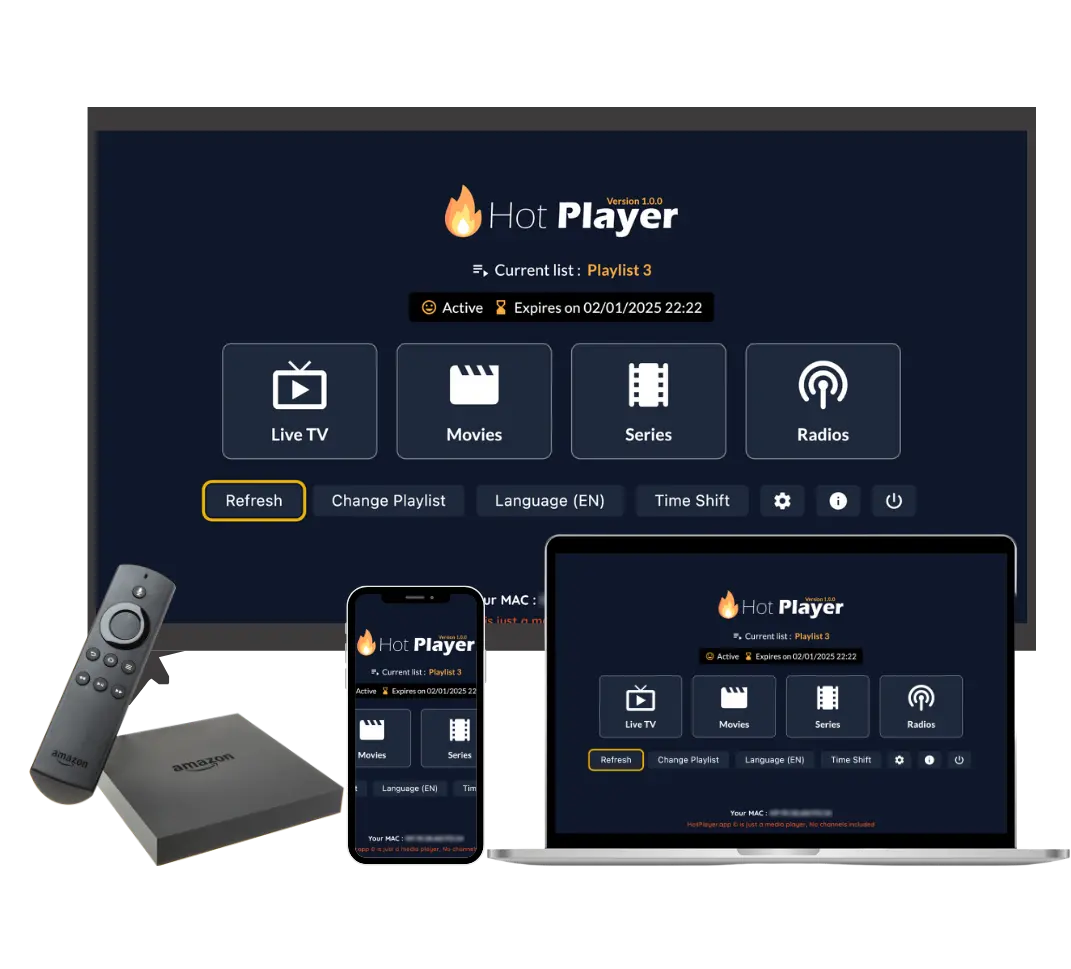
Installing HotPlayer on your iPhone or iPad is one of the easiest installation processes among all devices. Since HotPlayer is available directly from the Apple App Store, you don't need to enable special settings, download APK files, or use workarounds. This guide will walk you through the complete installation process.
Important to Remember: HotPlayer is a free IPTV player app available on the App Store. The app itself doesn't include any channels or content. To watch TV shows, movies, and live channels, you need to subscribe to our IPTV service and add the playlist to HotPlayer.
Requirements for iPhone and iPad
Before installing HotPlayer, make sure your device meets these requirements:
Device Requirements:
- iOS Version: iOS 12.0 or later (iPhone and iPad)
- Storage Space: At least 100 MB of free storage (app size is approximately 50-80 MB)
- Internet Connection: Stable Wi-Fi or cellular data connection
- Apple ID: Active Apple ID account (required for App Store downloads)
- Device Compatibility: Works on all iPhone models (iPhone 6s and later) and iPad models (iPad Air, iPad Pro, iPad Mini)
Note: HotPlayer is optimized for both iPhone and iPad. On iPad, you'll enjoy a larger screen experience with better navigation. The app automatically adapts to your device's screen size.
Installing HotPlayer from App Store
The App Store is the only official and safe way to install HotPlayer on iOS devices. The app is free to download and doesn't require any special permissions or settings changes.
Why Use App Store?
- Official Source: Guaranteed to be the official, safe version of HotPlayer
- Automatic Updates: App Store automatically updates HotPlayer when new versions are released
- No Jailbreak Required: Works on all iOS devices without jailbreaking
- Secure: Apple verifies all apps in the App Store for security
- Easy Installation: Just tap "Get" and the app installs automatically
Important: Never download HotPlayer from third-party websites or sources. Only use the official App Store to ensure you get the legitimate, secure version of the app.
Step-by-Step Installation Guide
Follow these simple steps to install HotPlayer on your iPhone or iPad:
Method 1: Direct App Store Link (Easiest)
- Open the App Store Link:
- On your iPhone or iPad, tap this link: https://apps.apple.com/us/app/hot-player/id6695762404
- The link will open directly in the App Store
- You'll see the HotPlayer app page
- Tap "Get" or Download Button:
- On the HotPlayer app page, you'll see a "Get" button (or cloud icon if previously downloaded)
- Tap the "Get" button to start downloading
- Authenticate Download:
- You'll be prompted to authenticate using Face ID, Touch ID, or your Apple ID password
- Complete the authentication
- The download will begin automatically
- Wait for Installation:
- The app will download and install automatically
- Installation typically takes 30-60 seconds depending on your internet speed
- You'll see a progress indicator on the app icon
- Open HotPlayer:
- Once installation is complete, tap "Open" on the App Store page
- Or find the HotPlayer icon on your home screen and tap it
- The app will launch and you're ready to set it up
Method 2: Search in App Store
- Open App Store:
- Tap the App Store icon on your iPhone or iPad home screen
- Wait for the App Store to load
- Search for HotPlayer:
- Tap the "Search" tab at the bottom of the screen
- Type "HotPlayer" or "Hot Player" in the search bar
- Tap "Search" on the keyboard
- Find the Official App:
- Look for the official HotPlayer app (usually the first result)
- Verify it's published by the correct developer
- Check the app icon matches the official HotPlayer logo
- Install the App:
- Tap on the HotPlayer app from search results
- Tap "Get" or the download button
- Authenticate and wait for installation to complete
Tip: The direct link method (Method 1) is faster and ensures you get the correct app. Bookmark the App Store link for easy access later.
First Launch and Setup
When you first open HotPlayer after installation, here's what to expect:
Initial Setup Steps:
- App Permissions:
- HotPlayer may request permission to access your device's storage (for playlist files)
- Tap "Allow" when prompted - this is needed to upload M3U files
- You may also see a network permission request - allow this for streaming
- Welcome Screen:
- You'll see a welcome screen or tutorial (if available)
- Read through the introduction or tap "Skip" to proceed
- Empty Player Notice:
- HotPlayer will appear empty with no channels or content
- This is normal - the app is just a player and needs a playlist
- You'll see options to "Add Playlist" or "Settings"
- Navigate to Settings:
- Tap the Settings icon (usually a gear icon) or menu button
- Look for "Playlist" or "Add Playlist" option
- This is where you'll add your IPTV subscription playlist
Remember: HotPlayer is a free player app. Without an IPTV playlist subscription, the app will remain empty. You need to subscribe to our IPTV service to get a playlist with channels and content.
Adding Your IPTV Playlist
After installing HotPlayer, the next step is to add your IPTV playlist. Here's how to do it on iPhone and iPad:
Step 1: Subscribe to IPTV Service
- Visit our packages page and choose a subscription plan
- Complete the checkout process
- You'll receive an email with your playlist credentials (URL, username, password)
Step 2: Add Playlist to HotPlayer
HotPlayer supports three methods for adding playlists on iOS:
Method A: M3U URL (Recommended)
- Open HotPlayer app
- Go to Settings → Playlist → Add Playlist
- Select "Add URL" or "M3U URL"
- Copy the playlist URL from your subscription email
- Paste it into the URL field in HotPlayer
- Tap "Save" or "Load"
- Wait for the playlist to download (1-3 minutes)
Method B: Upload M3U File
- Download the M3U file from your subscription email to your iPhone/iPad
- Open HotPlayer app
- Go to Settings → Playlist → Import File
- Tap "Browse Files" or "Choose File"
- Navigate to Files app and select the M3U file
- Grant HotPlayer access to Files when prompted
- Wait for import to complete
Method C: Xtream Codes API
- Open HotPlayer app
- Go to Settings → Xtream Codes or API
- Enter Server URL, Username, and Password from your subscription email
- Tap "Test Connection" to verify
- Tap "Save" and wait for channels to load
Tip: The M3U URL method (Method A) is recommended for iOS because it automatically updates your playlist whenever you open the app. This ensures you always have the latest channels and content.
iPhone vs iPad: Differences
While HotPlayer works on both iPhone and iPad, there are some differences in the experience:
iPhone Experience
- Portable and convenient for on-the-go streaming
- Touch-optimized interface
- Great for personal viewing
- Can use cellular data for streaming
- Smaller screen but still excellent quality
- Easy to hold and navigate
iPad Experience
- Larger screen for better viewing experience
- More screen space for channel browsing
- Better for family viewing
- Enhanced navigation with more visible options
- Can use iPad as a portable TV
- Supports split-screen multitasking (on supported models)
Good News: Your IPTV subscription works on both devices. You can install HotPlayer on both your iPhone and iPad and use the same playlist credentials on both devices (depending on your subscription plan's device limit).
Troubleshooting iOS Installation
If you encounter issues while installing or using HotPlayer on your iPhone or iPad, try these solutions:
Issue: Can't Find HotPlayer in App Store
Solutions:
- Use Direct Link: Use the direct App Store link: https://apps.apple.com/us/app/hot-player/id6695762404
- Check Spelling: Make sure you're searching for "HotPlayer" or "Hot Player" (with space)
- Update App Store: Make sure your App Store app is updated to the latest version
- Check Region: The app might not be available in all regions - try using the direct link
- Update iOS: Ensure your device is running iOS 12.0 or later
Issue: Download Fails or Stuck
Solutions:
- Check Internet: Ensure you have stable Wi-Fi or cellular connection
- Free Storage: Make sure you have at least 100 MB of free storage space
- Restart App Store: Close and reopen the App Store app
- Restart Device: Restart your iPhone or iPad and try again
- Check Apple ID: Verify your Apple ID is signed in and active
- Try Later: Sometimes App Store servers have issues - try again in a few minutes
Issue: App Crashes After Installation
Solutions:
- Update iOS: Make sure your device is running the latest iOS version
- Reinstall App: Delete HotPlayer and reinstall from App Store
- Restart Device: Restart your iPhone or iPad
- Check Storage: Ensure you have enough free storage space
- Update App: Check if there's an app update available in App Store
Issue: Can't Add Playlist
Solutions:
- Grant Permissions: Make sure you granted HotPlayer access to Files when prompted
- Check URL: Verify the playlist URL is complete and correct
- Internet Connection: Ensure you have active internet connection
- Try Different Method: If URL doesn't work, try uploading M3U file instead
- Check Subscription: Verify your IPTV subscription is active
Tips for Best Experience on iOS
Here are some tips to get the most out of HotPlayer on your iPhone or iPad:
1. Enable Automatic Updates
In App Store settings, enable automatic app updates. This ensures HotPlayer always has the latest features and bug fixes.
2. Use Wi-Fi for Streaming
While HotPlayer works on cellular data, Wi-Fi provides more stable streaming and doesn't consume your data plan.
3. Organize with Favorites
Use the Favorites feature to save your most-watched channels for quick access on your iPhone or iPad.
4. Enable Picture-in-Picture (PiP)
On supported iOS versions, enable Picture-in-Picture mode to watch while using other apps.
5. Use AirPlay for TV
Stream HotPlayer content to your Apple TV or AirPlay-compatible TV for a bigger screen experience.
6. Keep iOS Updated
Regular iOS updates ensure best compatibility and performance with HotPlayer.
7. Manage Storage
HotPlayer doesn't take much space, but keep your device storage clean for smooth operation.
8. Use iPad for Better Viewing
If you have both devices, use iPad for better viewing experience with larger screen and more comfortable navigation.
Conclusion
Installing HotPlayer on your iPhone or iPad is straightforward and takes just a few minutes. The process is:
- Download from App Store - Use the official link or search for "HotPlayer"
- Install automatically - Just tap "Get" and authenticate
- Open the app - HotPlayer will launch ready for setup
- Add your IPTV playlist - Subscribe to our service and add the playlist
- Start streaming - Enjoy thousands of channels and on-demand content
Remember: HotPlayer is a free player app available on the App Store. The app itself doesn't include content - you need to subscribe to our IPTV service to get a playlist with channels and movies. Once you have both the app and a subscription, you'll have access to 25,000+ channels and 100,000+ VOD titles on your iPhone or iPad. If you need help, our 24/7 support team is always ready to assist.
Ready to Install HotPlayer on Your iPhone or iPad?
Download the free HotPlayer app from the App Store and subscribe to our IPTV service to start streaming 25,000+ channels and 100,000+ VOD titles today!