
How to Set Up HotPlayer on Your Smart TV (Updated)
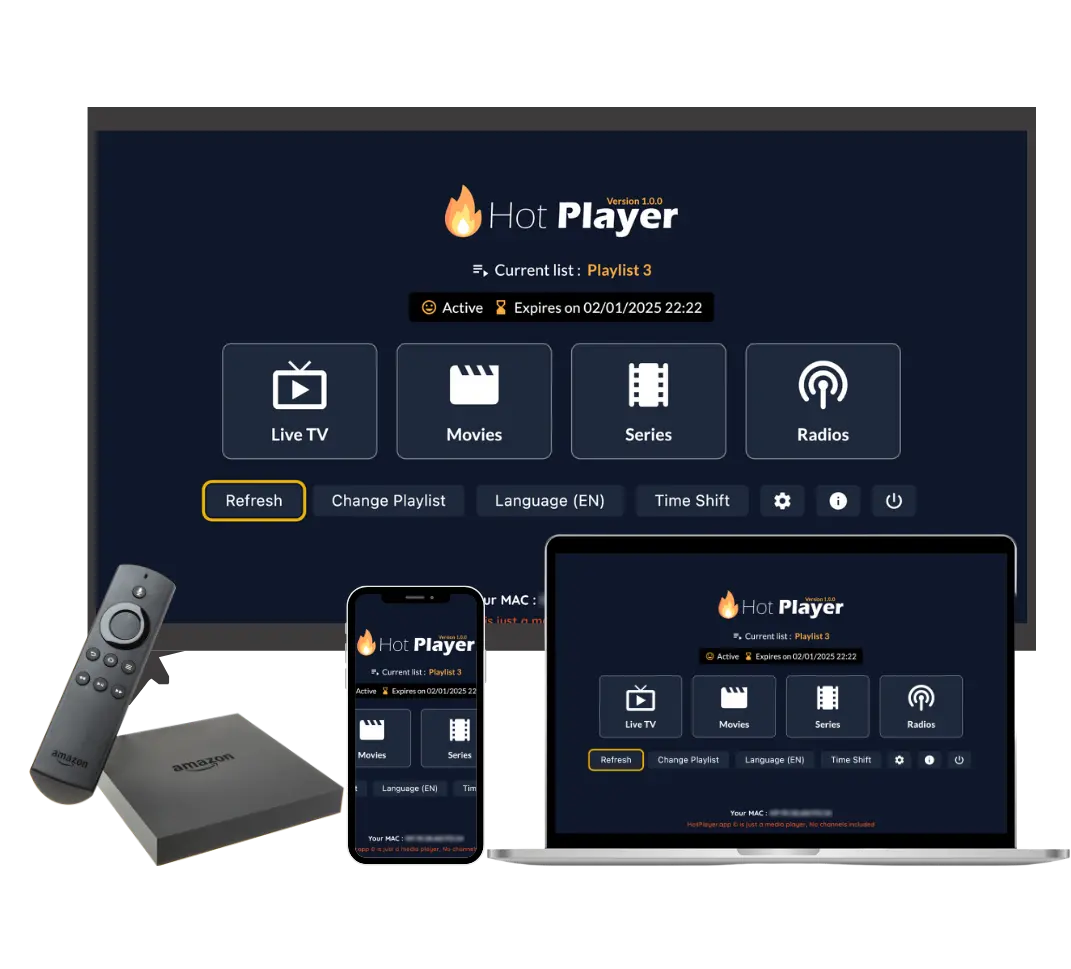
Setting up HotPlayer on your Smart TV is a great way to enjoy IPTV streaming on the big screen. Whether you have a Samsung Smart TV, LG Smart TV, Roku, or another Smart TV platform, this guide will walk you through the complete installation and setup process.
Important to Remember: HotPlayer is a free IPTV player app that you install on your Smart TV. The app itself doesn't include any channels or content. To watch TV shows, movies, and live channels, you need to subscribe to our IPTV service and add the playlist to HotPlayer.
Each Smart TV brand has its own app store and installation process. This guide covers the most popular Smart TV platforms: Samsung (Tizen OS), LG (WebOS), and Roku.
Requirements for Smart TV
Before installing HotPlayer on your Smart TV, make sure you have:
General Requirements:
- Smart TV: A Smart TV with internet connectivity (Samsung, LG, Roku, Android TV, etc.)
- Internet Connection: Stable Wi-Fi or Ethernet connection (minimum 10 Mbps for HD, 25 Mbps for 4K)
- TV Remote: Your Smart TV remote control for navigation
- App Store Access: Access to your TV's app store (Samsung Apps, LG Content Store, Roku Channel Store, etc.)
- IPTV Subscription: An active IPTV subscription to get playlist credentials
- TV Software Update: Make sure your Smart TV firmware is up to date
Note: Installation methods vary by Smart TV brand. Some TVs may require you to enable developer mode or allow installation from unknown sources, but most modern Smart TVs support direct installation from their app stores.
Installing HotPlayer on Samsung Smart TV
Samsung Smart TVs run on Tizen OS and have their own app store. Here's how to install HotPlayer:
Method 1: Direct Installation from Smart Hub
- Access Smart Hub:
- Press the "Smart Hub" button on your Samsung TV remote
- Wait for the Smart Hub interface to load
- Navigate to Apps:
- Use the remote to navigate to "Apps" section
- You'll see various app categories
- Search for HotPlayer:
- Use the search function in the Apps section
- Type "HotPlayer" using the on-screen keyboard
- Press Enter or select the search result
- Install HotPlayer:
- Select the HotPlayer app from search results
- Click "Install" or "Download" button
- Wait for the installation to complete (usually 1-2 minutes)
- Open HotPlayer:
- Once installed, select "Open" or find HotPlayer in your Apps list
- The app will launch and you can start setting it up
Method 2: Install from Computer (Alternative)
- Visit Samsung TV Apps on your computer
- Sign in with your Samsung account
- Search for "HotPlayer"
- Click "Install" - the app will be sent to your TV
- On your TV, you'll see a notification that the app is being installed
- Open HotPlayer from your Smart Hub once installation completes
Tip: If you can't find HotPlayer in the Samsung App Store, make sure your TV's firmware is updated. Older Samsung TVs may not have access to all apps. Also, check that your TV is connected to the internet.
Installing HotPlayer on LG Smart TV (WebOS)
LG Smart TVs run on WebOS and use the LG Content Store for apps. Here's how to install HotPlayer:
Step-by-Step Installation:
- Access Home Menu:
- Press the "Home" button on your LG TV remote
- The Home menu will appear on your screen
- Open LG Content Store:
- Navigate to "LG Content Store" from the Home menu
- Select it and press OK/Enter
- Wait for the Content Store to load
- Search for HotPlayer:
- Use the search function in the Content Store
- Type "HotPlayer" using the on-screen keyboard
- Select the search result
- Install HotPlayer:
- Select the HotPlayer app from the results
- Click "Install" button
- Wait for the download and installation to complete
- Installation typically takes 1-3 minutes
- Launch HotPlayer:
- Once installed, select "Open" or return to Home menu
- Find HotPlayer in your apps list
- Open it to start the setup process
Direct Link: You can also visit LG App Store - HotPlayer on your computer and send the app to your TV if it's connected to the same account.
Installing HotPlayer on Roku
Roku devices have their own channel store. Here's how to add HotPlayer as a channel:
Step-by-Step Installation:
- Access Home Screen:
- Press the "Home" button on your Roku remote
- You'll see the Roku home screen with channels
- Open Channel Store:
- Navigate to "Streaming Channels" from the home screen
- Select it and press OK
- This opens the Roku Channel Store
- Search for HotPlayer:
- Use the search function in the Channel Store
- Type "HotPlayer" or "Hot Player" using the on-screen keyboard
- Select the search result
- Add Channel:
- Select the HotPlayer channel from results
- Click "Add Channel" button
- Confirm the addition if prompted
- Wait for the channel to download and install
- Open HotPlayer Channel:
- Return to the Roku home screen
- Find the HotPlayer channel in your channel list
- Select it and press OK to launch
Direct Link: You can also add HotPlayer directly by visiting Roku Channel Store - HotPlayer on your computer and clicking "Add Channel" if your Roku account is linked.
Other Smart TV Platforms
If you have a Smart TV from another brand, here are general guidelines:
Android TV / Google TV
- Open Google Play Store on your Android TV
- Search for "HotPlayer"
- Install the app directly from Play Store
- Or visit Google Play Store on your computer and send to TV
Sony Smart TV
- Sony TVs typically use Android TV or have their own app store
- If Android TV: Use Google Play Store method above
- If Sony's own OS: Search for "HotPlayer" in the TV's app store
- Follow similar installation steps as Samsung or LG
Vizio Smart TV
- Vizio SmartCast TVs may have limited app availability
- Check the Vizio App Store for HotPlayer
- If not available, consider using a streaming device (Firestick, Roku) connected to your Vizio TV
TCL Smart TV
- TCL TVs often run Android TV or Roku TV
- If Android TV: Use Google Play Store
- If Roku TV: Follow Roku installation steps above
Note: If HotPlayer is not available in your Smart TV's app store, you can use a streaming device like Firestick, Roku, or Android TV box connected to your TV. These devices have better app support and are easier to set up.
Adding Your IPTV Playlist
After installing HotPlayer on your Smart TV, you need to add your IPTV playlist to start watching content. Remember: HotPlayer is just a player app - you need to subscribe to our IPTV service to get a playlist with channels and content.
Step 1: Subscribe to IPTV Service
- Visit our packages page and choose a subscription plan
- Complete the checkout process
- You'll receive an email with your playlist credentials (URL, username, password)
Step 2: Add Playlist to HotPlayer on Smart TV
On Smart TVs, the M3U URL method is recommended because typing is easier than file upload:
- Open HotPlayer on Your Smart TV:
- Launch the HotPlayer app from your TV's app list
- Wait for the app to fully load
- Navigate to Settings:
- Use your TV remote to navigate to Settings or Menu
- Look for "Playlist" or "Add Playlist" option
- Add Playlist URL:
- Select "Add URL" or "M3U URL" option
- You'll see a text field for entering the URL
- Use the on-screen keyboard to enter the playlist URL from your email
- Tip: If you have the URL on your phone, you can copy it and use a QR code scanner if your TV supports it, or type it carefully
- Save and Load:
- After entering the URL, select "Save" or "Load"
- HotPlayer will start downloading the playlist
- This may take 2-5 minutes depending on playlist size
- Wait for "Playlist loaded successfully" message
- Start Streaming:
- Once the playlist is loaded, you'll see all available channels
- Navigate through categories and select channels to watch
- Enjoy streaming on your big screen!
Pro Tip: If typing the long URL is difficult with your TV remote, you can use your smartphone to send the URL to your TV if your Smart TV supports screen mirroring or has a companion app. Alternatively, use Xtream Codes API method which requires shorter inputs (server URL, username, password).
Using Remote Control Effectively
Navigating HotPlayer on Smart TV requires using your TV remote. Here are some tips:
Remote Control Tips:
- Arrow Keys: Use directional arrows to navigate through menus and channel lists
- OK/Enter Button: Press to select items, play channels, or confirm actions
- Back Button: Use to go back to previous screen or exit menus
- Home Button: Returns to TV home screen (may close HotPlayer)
- Number Pad: Some remotes allow direct channel number entry
- Voice Search: If your remote has voice search, you can use it to find channels
- On-Screen Keyboard: When entering URLs or searching, use the on-screen keyboard carefully
Tip: Some Smart TVs support mobile apps that act as remote controls. Check if your TV brand has a companion app - it can make navigation and text entry much easier than using the physical remote.
Troubleshooting Smart TV Issues
If you encounter problems while installing or using HotPlayer on your Smart TV, try these solutions:
Issue: Can't Find HotPlayer in App Store
Solutions:
- Update TV Firmware: Make sure your Smart TV's software is updated to the latest version
- Check Region: Some apps may not be available in all regions - try using direct links
- Search Variations: Try searching for "Hot Player" (with space) or "HotPlayer IPTV"
- Use Direct Link: Visit the app store on your computer and send the app to your TV
- Check TV Model: Older Smart TVs may not support all apps - check compatibility
Issue: Installation Fails or Stuck
Solutions:
- Check Internet: Ensure your TV has stable internet connection
- Free Storage: Make sure your TV has enough storage space for the app
- Restart TV: Unplug your TV for 30 seconds, then plug back in and try again
- Clear App Store Cache: Some TVs allow clearing app store cache in settings
- Try Later: App store servers may be busy - try again in a few minutes
Issue: App Crashes or Freezes
Solutions:
- Update App: Check if there's an app update available in the app store
- Update TV Software: Make sure your TV's operating system is up to date
- Reinstall App: Delete HotPlayer and reinstall from the app store
- Restart TV: Power cycle your TV (unplug for 30 seconds)
- Check Internet: Poor connection can cause app issues
Issue: Can't Enter Playlist URL
Solutions:
- Use Xtream Codes: Instead of long URL, use Xtream Codes API (shorter inputs)
- Mobile Remote: Use your TV's mobile app to enter text more easily
- Copy Carefully: Make sure you copy the entire URL correctly from your email
- Check URL Format: Ensure the URL starts with http:// or https://
- Try File Upload: If your TV supports it, download M3U file to USB and upload
Issue: Channels Buffer or Won't Play
Solutions:
- Check Internet Speed: Test your connection - need at least 10 Mbps for HD
- Use Ethernet: Connect TV via Ethernet cable instead of Wi-Fi for more stable connection
- Reduce Quality: Lower streaming quality in HotPlayer settings
- Close Other Apps: Close other apps on your TV that might be using bandwidth
- Restart Router: Sometimes a router restart improves connection
Still Having Issues?
If none of the above solutions work:
- Contact Our Support: Our 24/7 support team can help with Smart TV setup issues
- WhatsApp Support: Get instant help via WhatsApp
- Email Support: Send details to support@hotiptvapp.com
- Check FAQ: Visit our FAQ page for more solutions
- Consider Streaming Device: If your TV has compatibility issues, use Firestick, Roku, or Android TV box
Tips for Best Smart TV Experience
Here are some tips to get the most out of HotPlayer on your Smart TV:
1. Use Ethernet Connection
Connect your Smart TV to the internet via Ethernet cable instead of Wi-Fi for more stable streaming and less buffering.
2. Organize Channels with Favorites
Use HotPlayer's Favorites feature to save your most-watched channels for quick access without scrolling through thousands.
3. Enable EPG (Electronic Program Guide)
Enable EPG in settings to see what's currently playing and what's coming up on each channel.
4. Keep TV Software Updated
Regularly update your Smart TV's firmware to ensure best compatibility and performance with HotPlayer.
5. Use Categories for Navigation
Navigate by categories (Sports, Movies, News, etc.) instead of scrolling through all channels - much faster on Smart TV.
6. Adjust Picture Settings
Optimize your TV's picture settings for streaming content - adjust brightness, contrast, and color for best viewing experience.
7. Close Other Apps
Close other apps running on your Smart TV to free up resources and ensure smooth HotPlayer performance.
8. Use Search Function
With thousands of channels, use HotPlayer's search function to quickly find specific channels instead of browsing manually.
Conclusion
Setting up HotPlayer on your Smart TV is straightforward, though the exact steps vary by TV brand. The general process is:
- Find HotPlayer in your TV's app store (Samsung Apps, LG Content Store, Roku Channel Store, etc.)
- Install the app - usually just a few clicks
- Open HotPlayer and navigate to settings
- Add your IPTV playlist by entering the URL or credentials from your subscription
- Start streaming thousands of channels and on-demand content on your big screen
Remember: HotPlayer is a free player app that you install on your Smart TV. The app itself doesn't include content - you need to subscribe to our IPTV service to get a playlist with channels and movies. Once you have both the app and a subscription, you'll have access to 25,000+ channels and 100,000+ VOD titles on your Smart TV. If you need help with setup, our 24/7 support team is always ready to assist.
Ready to Set Up HotPlayer on Your Smart TV?
Install the free HotPlayer app on your Smart TV and subscribe to our IPTV service to start streaming 25,000+ channels and 100,000+ VOD titles on the big screen today!